
Using Drupal 8's Search API, we'll quickly run through the steps for building a search page.
Grab and enable the Fire Search module
- https://github.com/skycatchfire/fire-modules/tree/master/fire_search (external link, opens in a new tab)
drush en fire_search- Update
$valid_bundlesarray on line 31 offire_search.moduleto the content types you want to add the Search aggregate field to
Create a Search Keywords taxonomy
Add new fields to content types you will be indexing
- Add a Search Aggregate field (Text, (plain, long))
- Help Text: Automatically populated when saving a node. Used for search.
- Add a Search Keywords field (Entity reference) that pull from the Search Keywords taxonomy that you added to each content types that you
- Should be autocomplete
- Should allow multiple values
- Reference Type: Search Keywords
- Check Create referenced entities if they don't already exist
- Help Text: A comma-separated list of keywords that will make this content appear in search form suggestions.
- Add a Search Description field (Text (formatted, long))
- This will be displayed on the search page for each result
- Help Text: Displayed on the search results page.
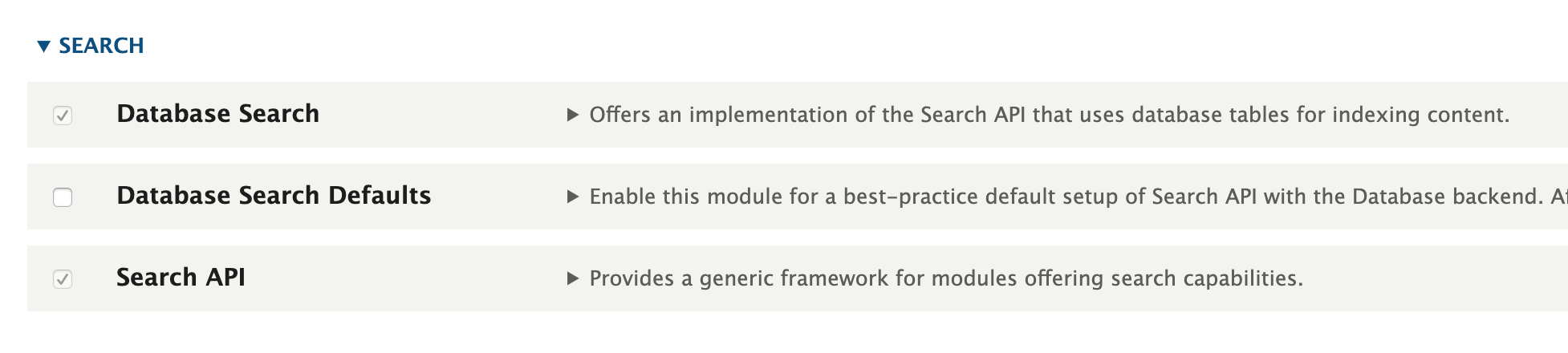
Enable Database Search and Search API modules
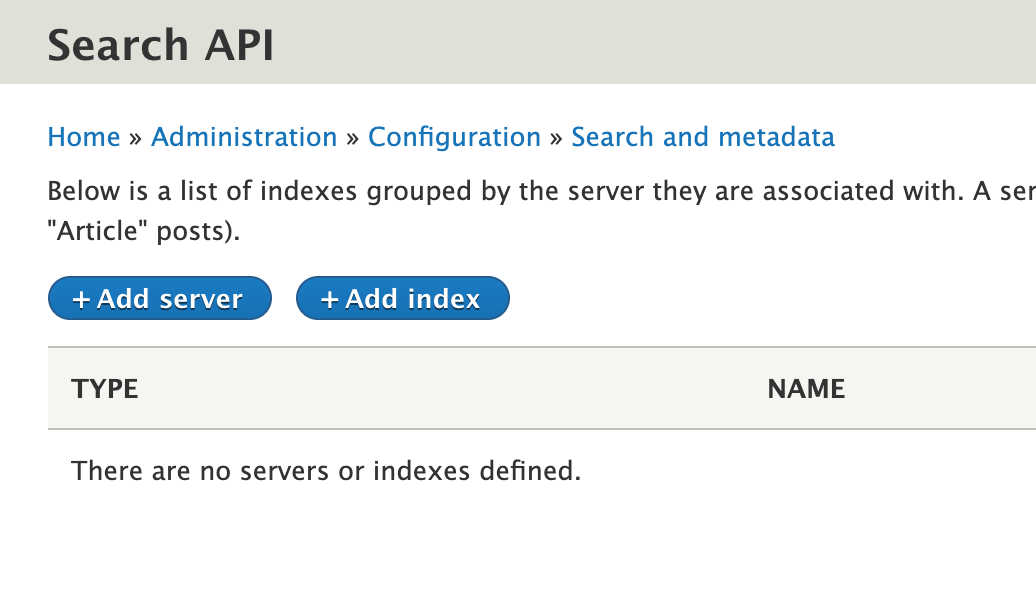
Click Add Server button
- Fill in fields
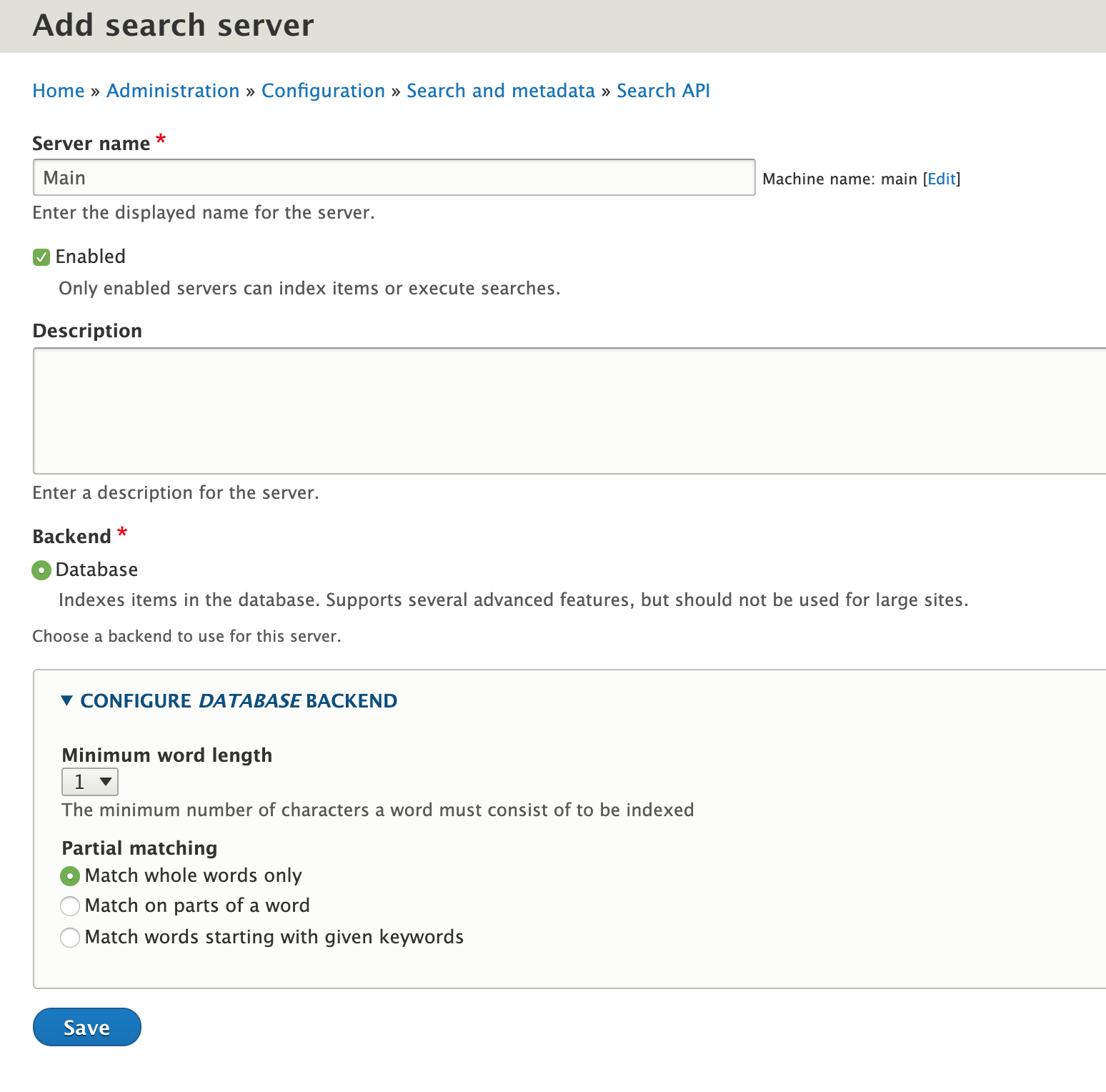
- Save
Navigate to Search API page
/admin/config/search/search-api
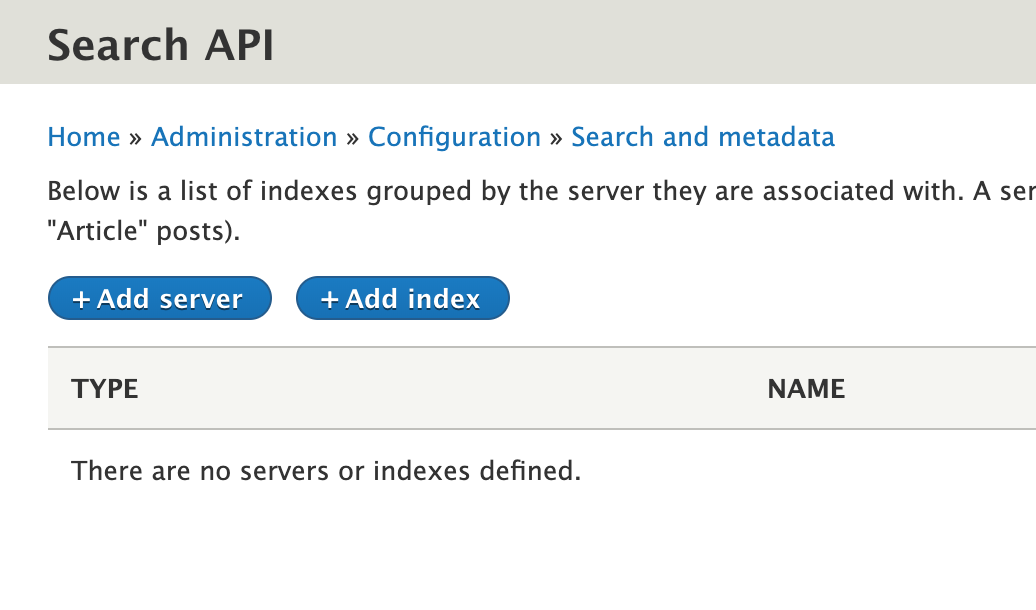
Click Add Index button
- Fill in fields and select datasources you want to index
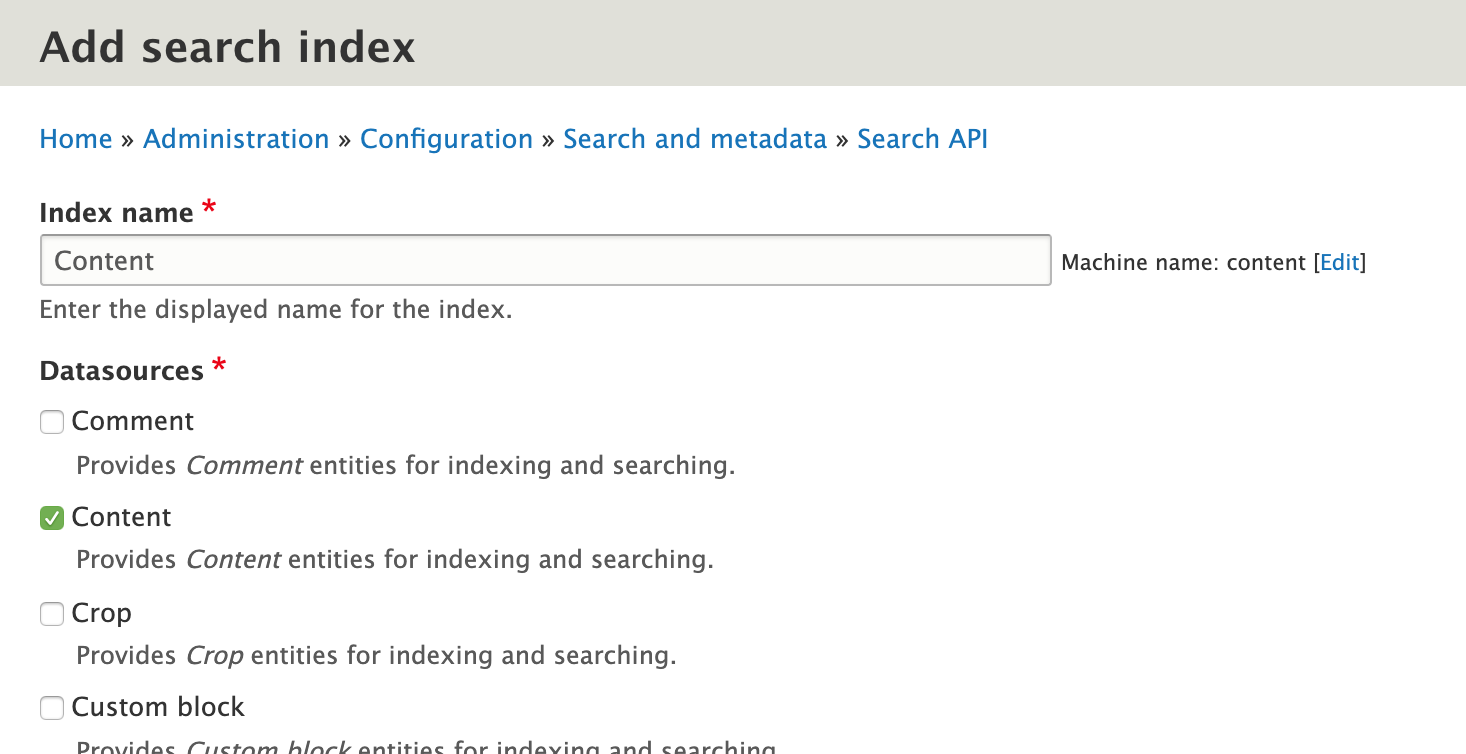
- Scroll down and configure the datasources you selected
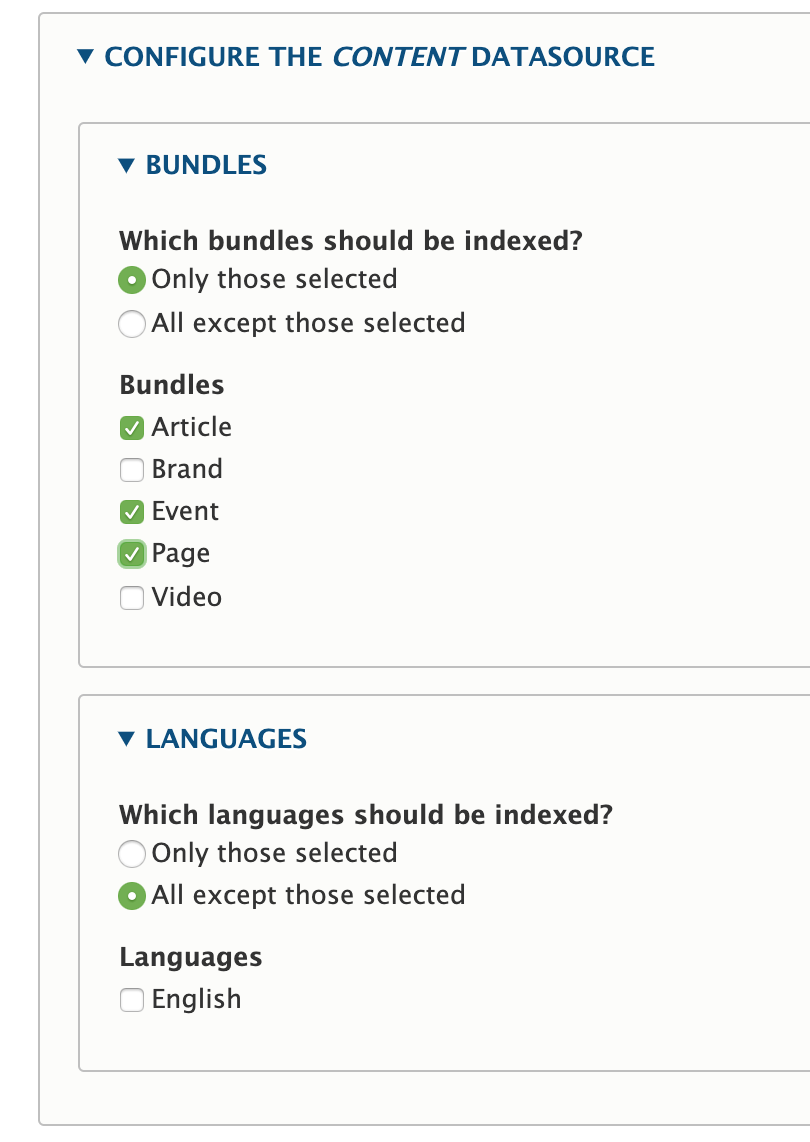
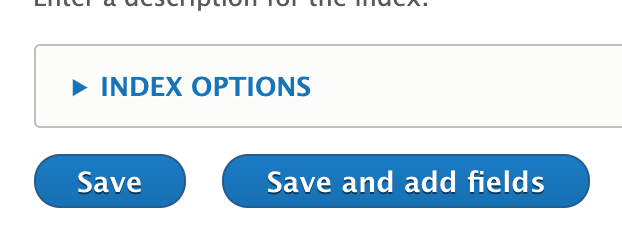
- Choose which server the indexes should use
 5. Click the Save and add fields button
Navigate to Fields tab for datasource
- /admin/config/search/search-api/index/content/fields
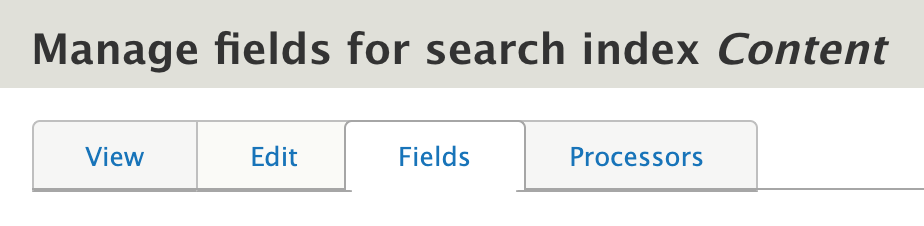
- Click Add fields
- Add the fields that should be indexed
- Configure Type
- Configure Boost to desired value if applicable
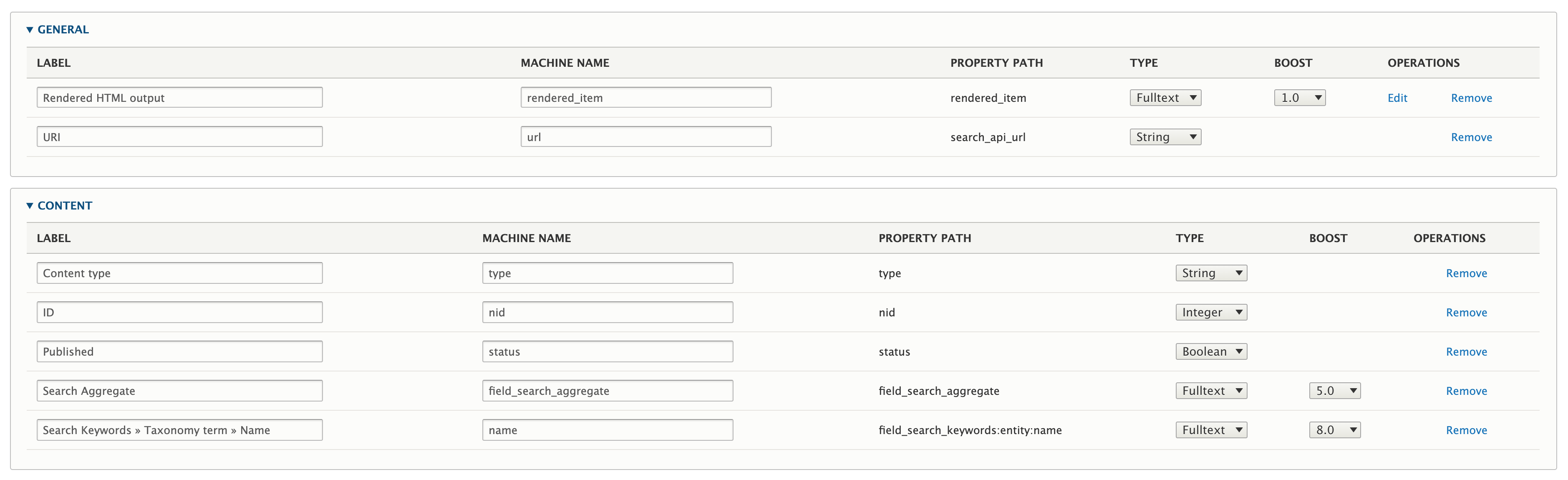
- Click Save changes
Click Processors tab
- /admin/config/search/search-api/index/content/processors
- Enable HTML filter and Ignore case processors
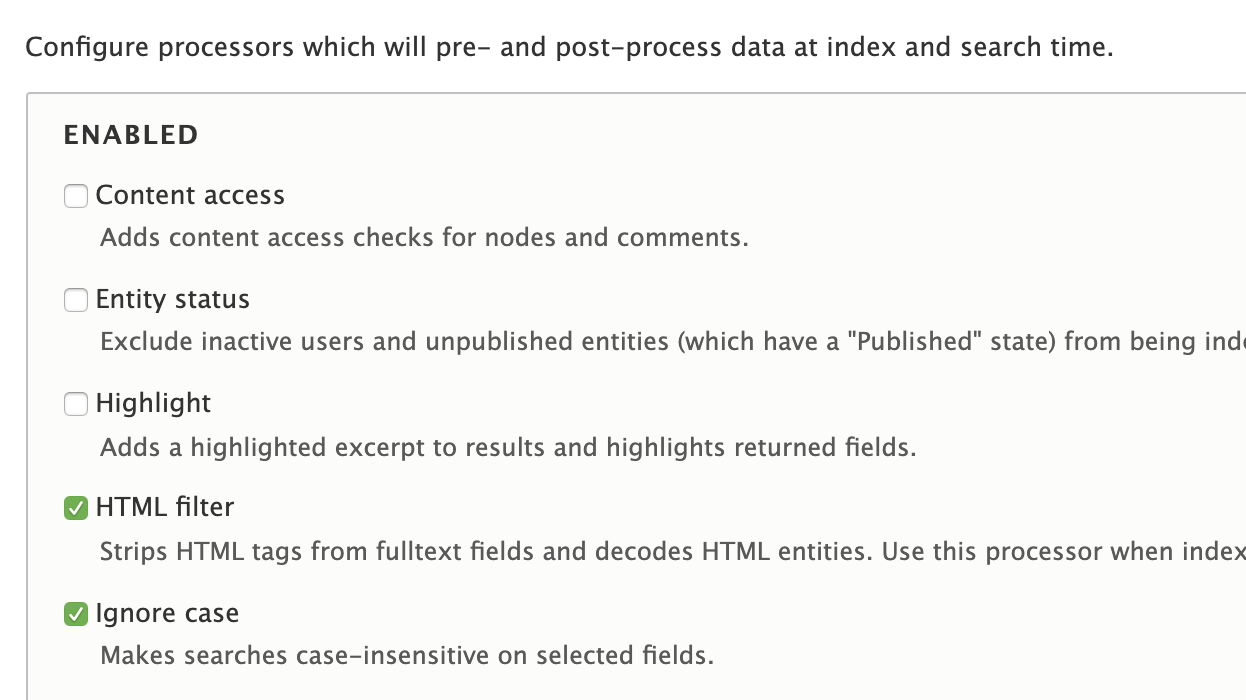 3. Scroll down and update Processor settings for HTML filter
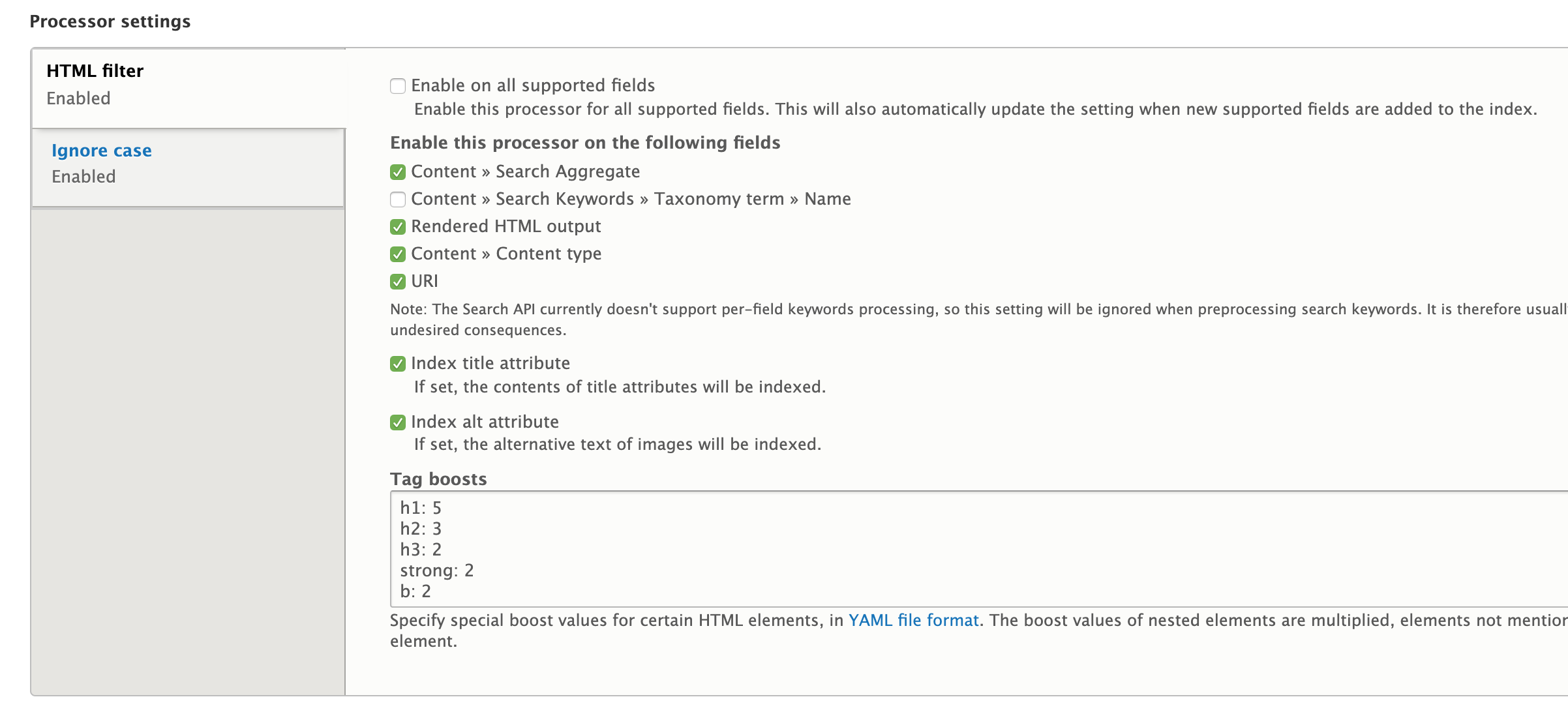 4. Update Processor settings for Ignore case
 5. Click Save
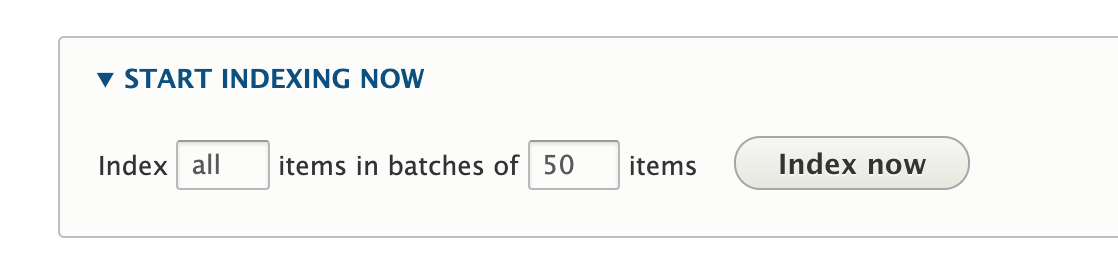
Click View tab
- Click the Index now button
Create a view
- Name it Search
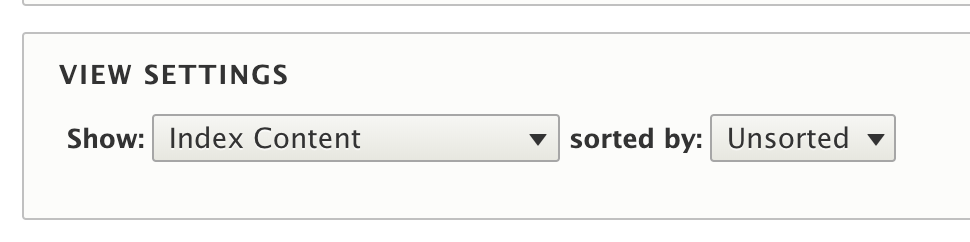
- In View Settings, choose Index Content
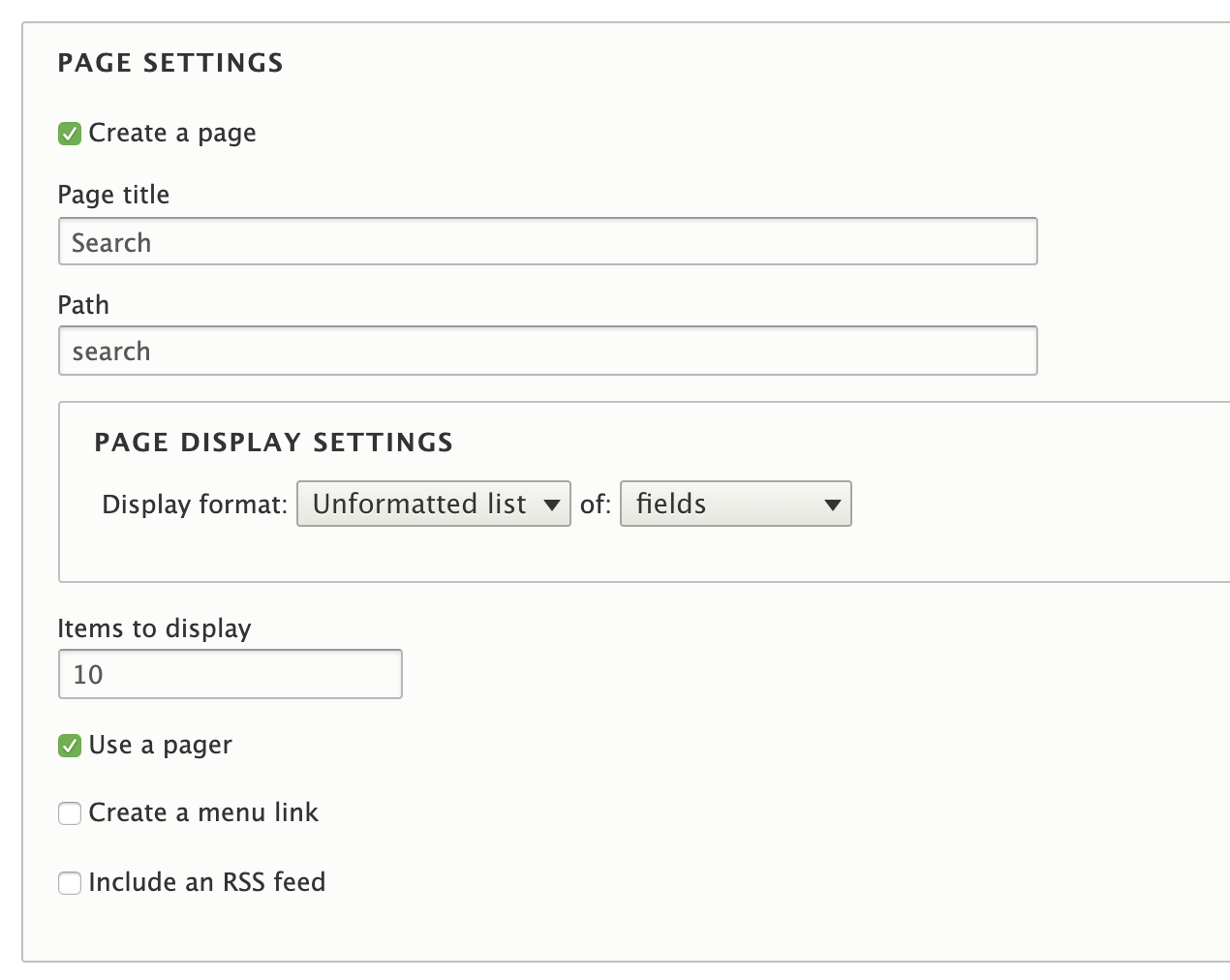
- Click the Create a page checkbox and configure
- Click Save and edit
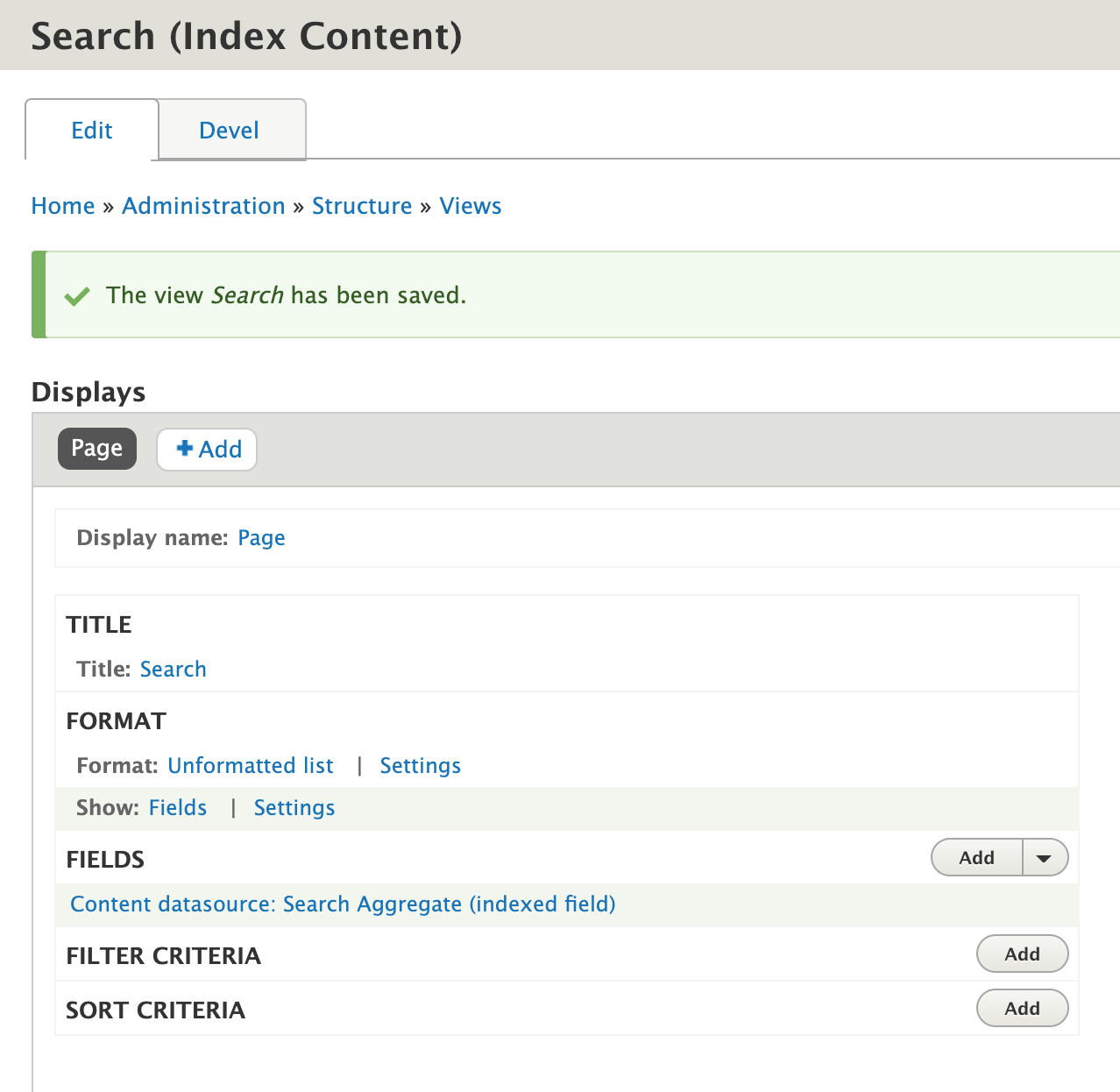
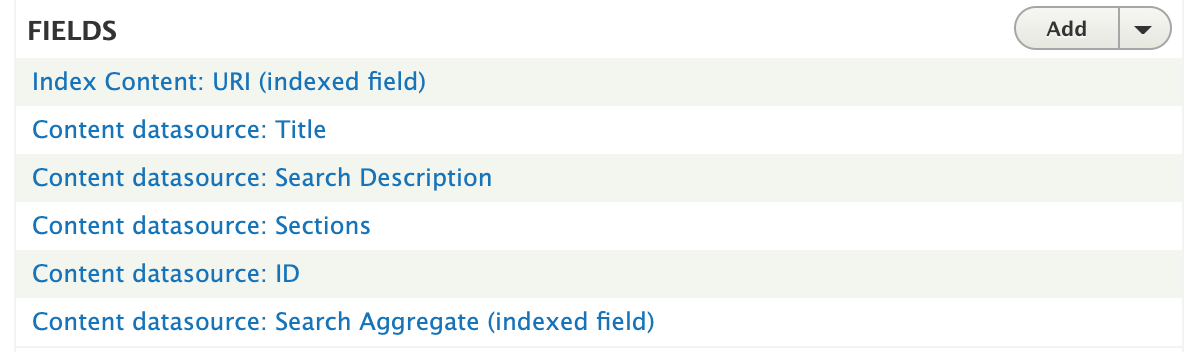
Once on the Search View page, add fields to display and configure
-
/admin/structure/views/view/search
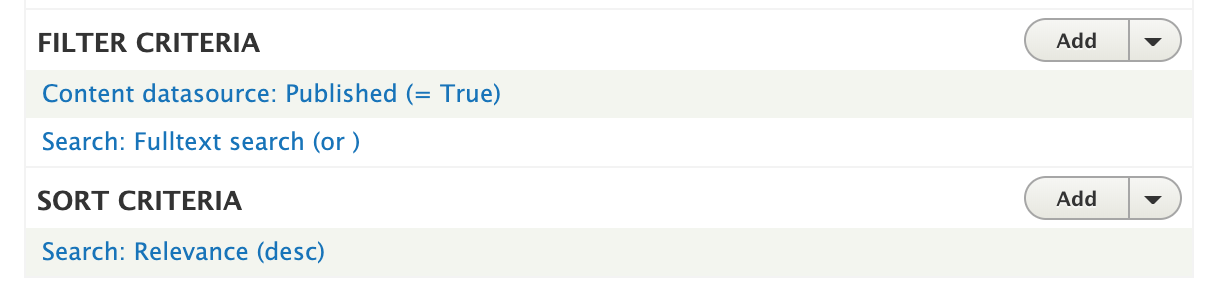
Update Filter/Sort Criteria
Create templates, output selected fields, style 😃